 NL
NLReduce IPTV Buffering on Dutch Home Internet
Buffering can begin in the home network, app, device or stream source. Test Wi-Fi, ethernet and playback before changing your IPTV package.
Separate the package from the home network
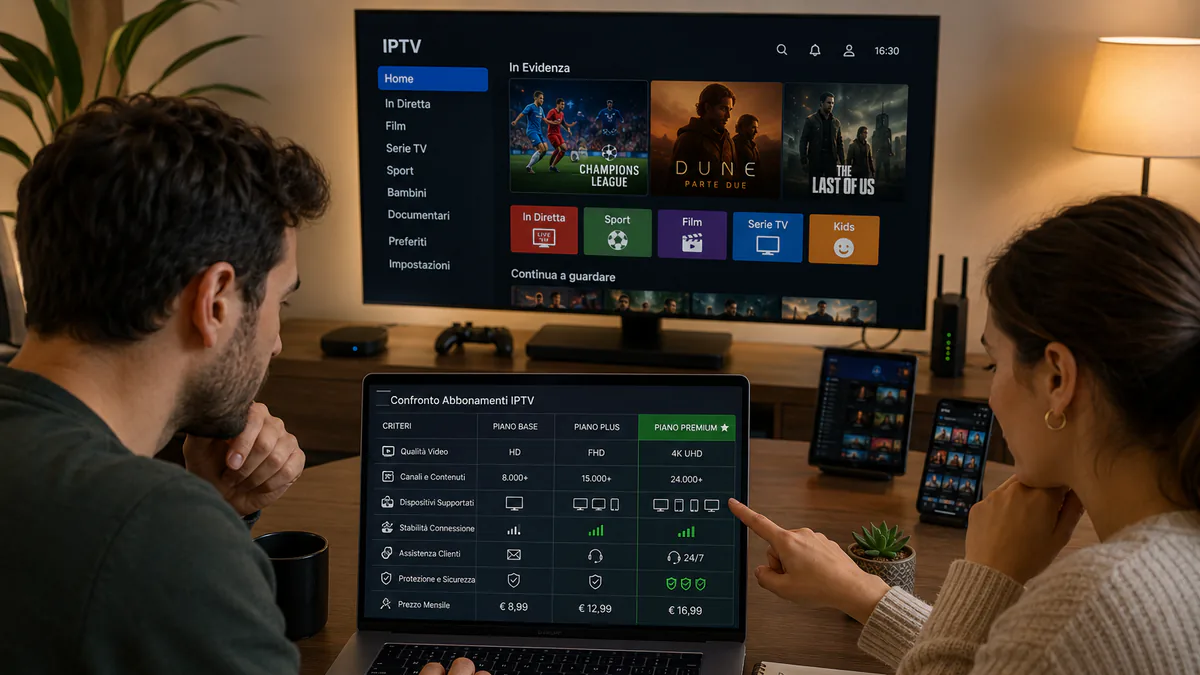
IPTV buffering can come from the stream source, home network, app or device. Local causes include weak Wi-Fi, a busy router, an older TV app or several devices using the same connection.
Before changing packages, test the same channel on another device or with an ethernet cable. That comparison helps narrow down whether the issue follows the source, app, device or home setup.
Use ethernet as a reliable baseline when you can
Ethernet is usually the most reliable connection and diagnostic baseline for live TV and sports. It avoids interference from neighboring Wi-Fi networks and can give a Smart TV or Android box a more consistent connection.
This matters during fast-moving sport, where even small drops are more visible than they are during a film or series.
Tune Wi-Fi for Dutch apartments and houses
If a cable is not possible, move the router or mesh node closer to the TV, use the 5 GHz band where available and avoid hiding the router inside a cabinet.
In apartments, nearby networks can crowd the signal. In larger houses, thick walls and distance are often the issue. A mesh node near the TV can help, but placing it too far from the main router only repeats the weak signal.
- Prefer 5 GHz for streaming when the signal is strong
- Restart modem and router when a fault or recent update gives you a reason to test again
- Keep heavy downloads away from match time
- Use ethernet for Android boxes when possible
Clean up the app and device
Smart TVs and Android boxes can slow down when storage is full or several apps remain active. Close unused apps and restart the device; clear the IPTV app cache only when the player is demonstrably slow or stuck, and preserve login details first.
If an older Smart TV remains slow, a modern Android TV box can give a smoother interface without replacing the television.
Lower quality only when stability needs it
A stable FHD stream is usually better than a 4K stream that buffers every few minutes. During testing, compare HD, FHD and 4K on the same channel if the app allows it.
When only one category buffers while others work well, contact support with the channel name, time, device and connection type. That information is far more useful than a general complaint.
Original speed and server guidance
For smooth HD, use at least 20 Mbps. For consistent FHD or 4K, allow 30 to 50 Mbps, especially when several screens are active. On a typical TV, the difference between FHD and 4K is barely noticeable while lowering quality can improve stability considerably.
The server side also matters. A provider with enough capacity and priority prevents slowdowns during peak moments. VIP packages generally offer higher server priority than Premium, which can make a noticeable difference during peak load.
- HD: at least 20 Mbps
- FHD: 25 to 30 Mbps
- 4K: 30 to 50 Mbps
Related: Check your Smart TV installation · Compare Premium and VIP packages
Frequently asked questions
Why does IPTV buffer when my speed test looks fast?
A speed test shows a short measurement, while live streaming needs steady delivery. Wi-Fi interference, packet loss, a busy device or one problematic channel can cause buffering even when the peak download speed is high.
What is the quickest way to diagnose IPTV buffering?
Test three different channels and one VOD title, then repeat one stream over ethernet. If only one channel fails, the source is the likely cause; if everything improves over cable, focus on the home Wi-Fi setup.
Should I use a VPN to stop IPTV buffering?
A VPN is not the first fix and may add delay. Check ethernet, the app, device storage, background downloads and several channel sources first. Use a VPN only when permitted and when testing shows that it genuinely improves the connection route.